Japanese image translator
Translate Japanese image text while keeping kanji, kana, numbers, and context in view
Japanese images often mix kanji, hiragana, katakana, Latin letters, numbers, and symbols in the same visual space. That can be a menu, a product label, a train notice, an app screen, a sign, or a printed instruction. ImageLingua gives you a translated image to inspect beside the source, which is useful when the way text is grouped is part of the meaning.
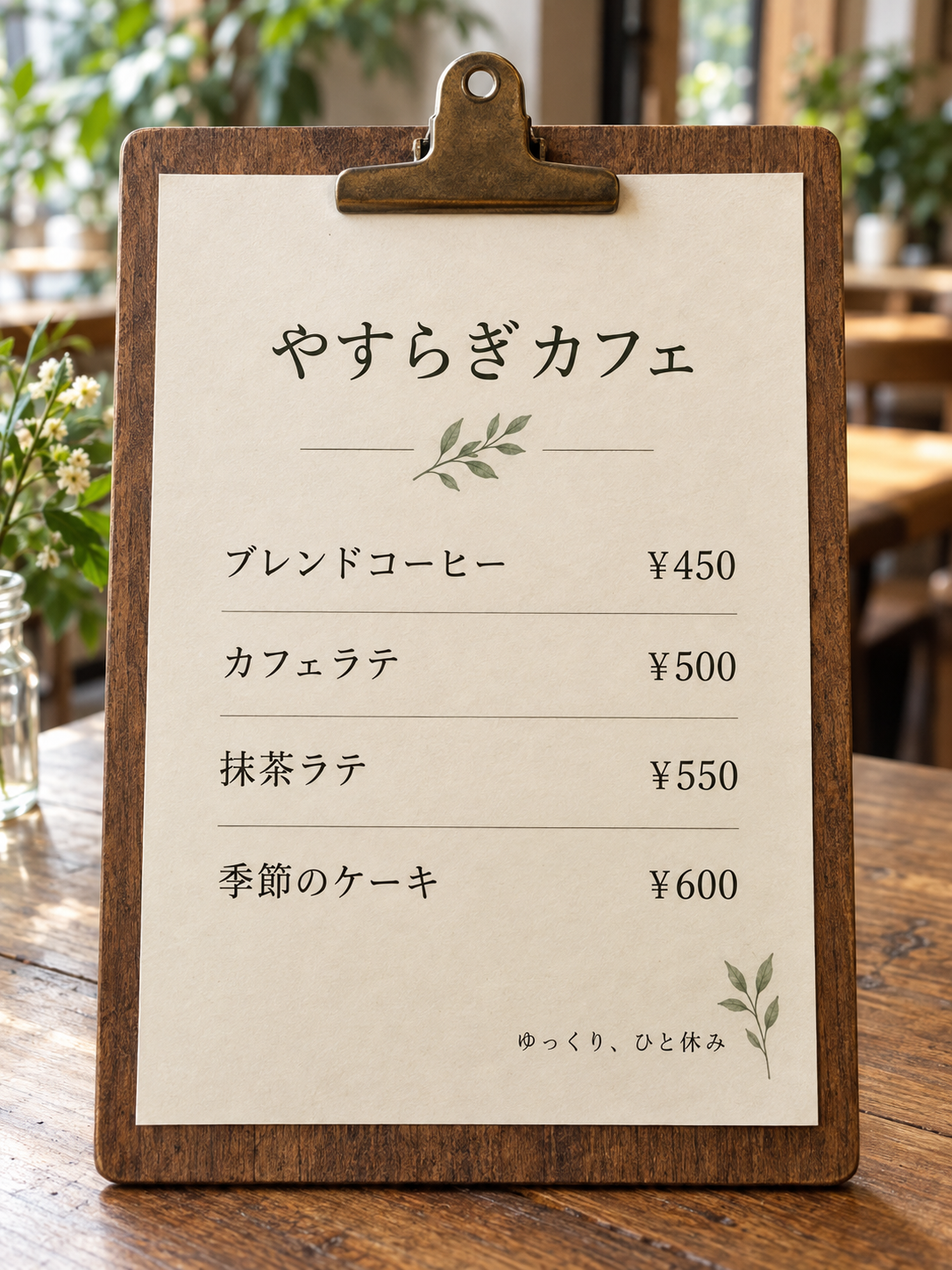
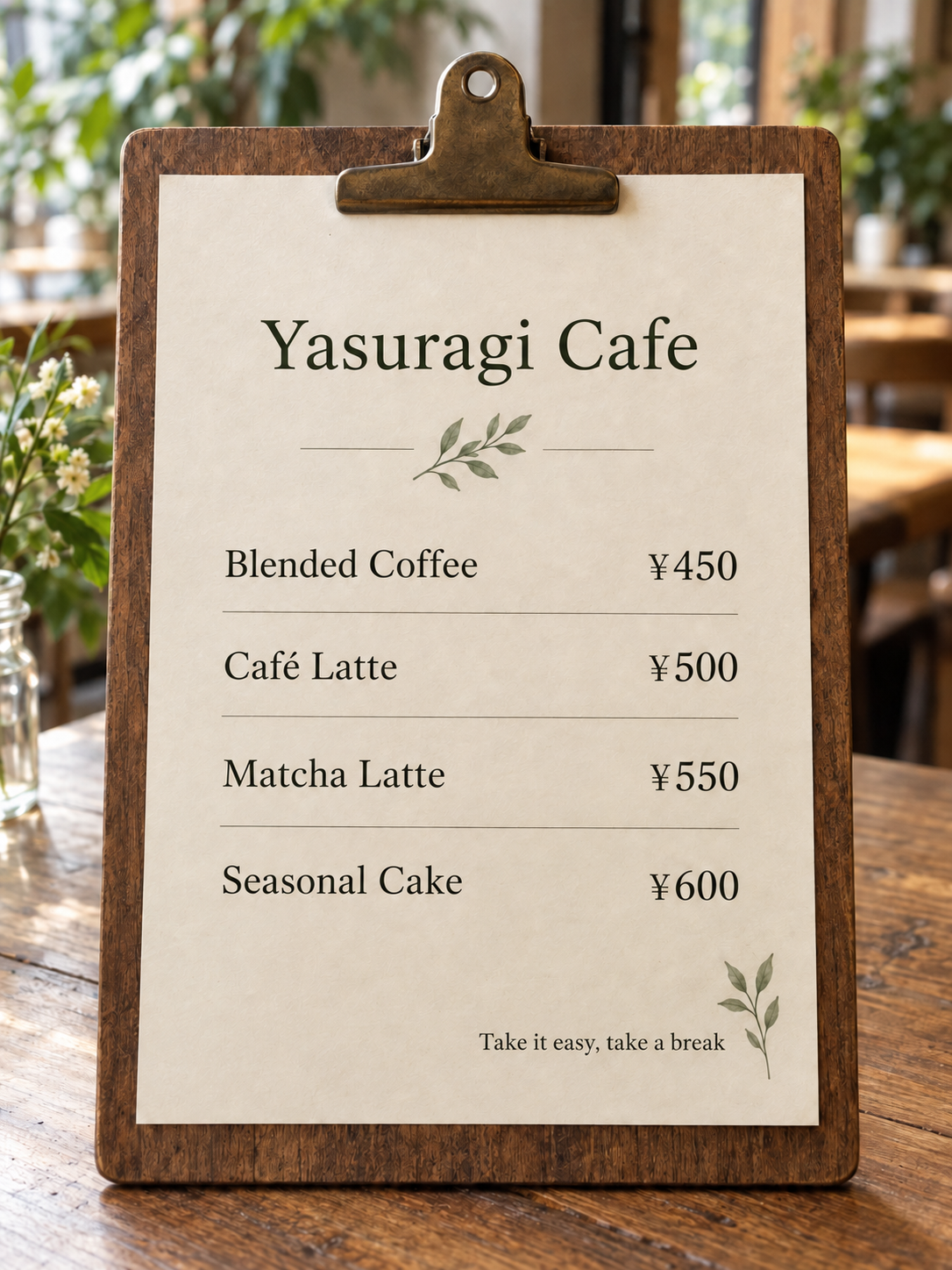
Why Japanese image context matters
Japanese writing can combine character systems in a single line, and a short phrase can mean something different depending on the item, heading, or image around it. Kanji may represent a name, a category, or a concept; kana can show pronunciation, grammar, or a borrowed word; numerals may be a price, a date, a platform, or a quantity. A complete image helps you check those relationships instead of reading a detached fragment with no visual clue about where it appeared.
The menu example above includes a café name, item names, Japanese script, and yen prices arranged as one page. The English version helps a reader orient themselves, while the original remains useful for confirming a name, a price, or a term that may need its original form.
Use the same direct image workflow
Choose the clearest JPG or PNG image you have, select the language the next reader needs, sign in with Google when prompted, and start the translation. The current tool accepts files up to 10 MB and 20 megapixels, which covers a clear menu photograph, sign, screenshot, or scanned page within those limits.
- Use the clearest source image available and keep related text in the same frame.
- Select a target language from the 15-language control.
- Compare names, dates, prices, quantities, URLs, and symbols with the original after translation.
- Download the reviewed image or find it in My images while it remains available.
Review names and important details in the source
A translation can make Japanese image text much easier to navigate. Keep the original visible when a proper name, date, price, quantity, URL, or action label matters. For menus and signs, compare numbers and currency. For apps and devices, compare labels and buttons before you follow an instruction.
The account rules are the same whether you translate Japanese, a screenshot, or another supported image: sign in with Google for one free translation, then see available image packs on Pricing if you need more.